


TP-LINK tpCamera
4.1261.00 Reviews
App Specs
- Version
- 3.2.22
- Updated On
- License
- Free
- Downloads
- 1,000,000+
- Developer
- TP-LINK SYSTEMS INC.
- Categories
- Libraries & Demo
- Platform
- Android, iOS
Screenshots
 Analysis by AppCompare
I see TP-LINK tpCamera as a practical companion for people who already use compatible TP-LINK cameras and want a straightforward way to check their feeds away from home. Its appeal is focused rather than broad: this is a camera-viewing app, not a general smart-home control center. That makes it easier to understand, but it also means the value depends heavily on whether your cameras fit its ecosystem and whether remote viewing is the main thing you need.
That focused role matters in daily use. A phone app can make a camera more useful when you are out, but it cannot make an unreliable home connection dependable or turn a basic camera into a complete security system. I would treat tpCamera as the viewing and monitoring layer for supported equipment, and judge it by how comfortably it helps you check in, rather than expecting it to replace every part of a home-security setup.
Where a camera app earns its place
The strongest case for using a dedicated camera app is the small check-in that saves you a larger worry. If I have stepped out and want to see whether a delivery has arrived, or whether a room looks as expected, opening a live feed is more useful than waiting until I get home. It is also a sensible fit for someone who wants to glance at an office or another familiar space without carrying a separate monitor.
That convenience is most valuable when the camera has a clear job and a useful viewpoint. Before relying on alerts, I would spend time positioning the camera and checking what counts as relevant movement in its field of view. A camera pointed toward a busy window or a frequently used doorway can generate activity that is technically accurate but not helpful. Adjusting placement and sensitivity together is a better approach than simply making alerts more sensitive and hoping for the best.
For an everyday routine, imagine leaving home for errands and wanting to check that a pet is settled. I would open the feed for a quick look, then close it rather than leaving video running in the background. That is a more practical use than treating a phone as a permanent surveillance screen: it keeps the interaction brief, avoids unnecessary battery use, and gives the camera a defined purpose. If the picture takes time to load, I would first consider the network at both ends before assuming the app itself is at fault.
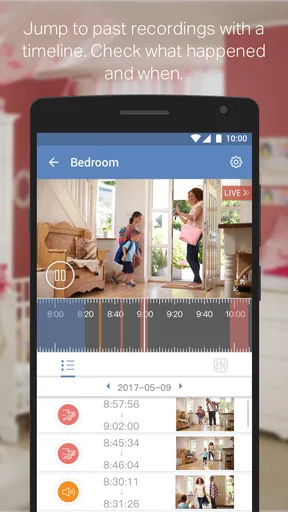
There is a useful distinction between live viewing and recorded evidence. A live feed answers “what is happening now?” while saved footage may help explain what happened earlier. Those are different needs, and anyone relying on recordings should check where their chosen setup stores them and how they can retrieve them before an important event occurs. I would not wait for a problem to discover that the recording workflow is less convenient than expected.
Choosing it over broader alternatives
Compared with a general smart-home app, a camera-focused tool can be less cluttered if all I want is a quick look at video. A broader platform may be a better fit for someone who wants cameras, lights, locks, sensors, and routines managed together. The trade-off is straightforward: a dedicated app can keep the camera task easy to find, while a single hub can reduce app switching when a household has equipment from several product lines.
Worth Reading Before You Choose

Flipboard Shows What News Apps Must Do Beyond the Feed

Switching to Android Auto Means Rethinking Your Driving Routine

Google Calendar Makes a Crowded Week Easier to Manage

Ludo King Makes the Most of the Minutes Between Plans

Baby Panda World Brings Quick Play to Modern Phones, but Its Game Library Feels Busy

ESPN’s Live Game View Makes Following Close Games Easier
It also differs from relying on a camera’s local screen or a computer browser. Those options can suit someone who mainly monitors a fixed location, but they are less convenient when the point is to check from outside the home. On the other hand, if remote viewing is only an occasional need and the camera already offers a reliable alternative through another service, installing another app may not improve the routine enough to justify it.
Compatibility should be the first practical question for a potential user. The name and developer, TP-LINK SYSTEMS INC., make the intended ecosystem clear, but that does not mean every camera from the company will behave identically. I would confirm that a specific camera model is supported before building a monitoring routine around the app. This is especially important if you are buying a camera now or trying to combine equipment acquired at different times.
For someone who already owns supported hardware, there is little reason to choose a more complicated camera platform just for the sake of having more menus. For someone starting from scratch and comparing several brands, I would choose the cameras and their long-term software support first, then decide which app suits the household. The app is part of the system, not a substitute for checking whether the cameras themselves meet your needs.
Practical habits that make monitoring better
I would begin by testing the camera from the same kind of connection I expect to use while away. A feed that looks fine on home Wi-Fi may respond differently over a mobile connection or another network. A quick test before depending on remote access can reveal whether the delay comes from the connection, the camera location, or the viewing setup. It also prevents the frustrating first discovery of a problem when you are already away.
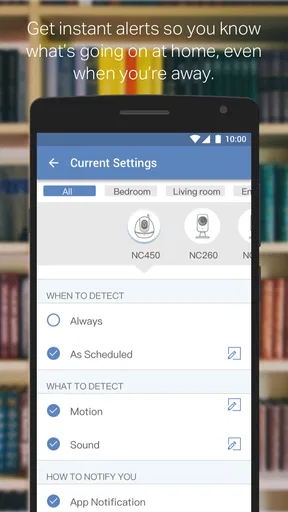
For motion alerts, I would make one change at a time and observe the result over ordinary days. If alerts are too frequent, lowering sensitivity or changing the camera’s view may be more useful than turning notifications off altogether. If an important area is missed, repositioning the camera can be more effective than expecting software settings to compensate for a blocked or awkward angle. The aim is not to receive the most alerts; it is to receive alerts that lead to a worthwhile check.
It is also worth deciding who in a household actually needs access. Sharing camera access casually can make it harder to know who can view a feed, while keeping access limited can make routine use clearer. I would review the account and device arrangements whenever household circumstances change, and use a strong, unique password for the account. These are basic habits, but they matter because a camera app connects to a view of private spaces.
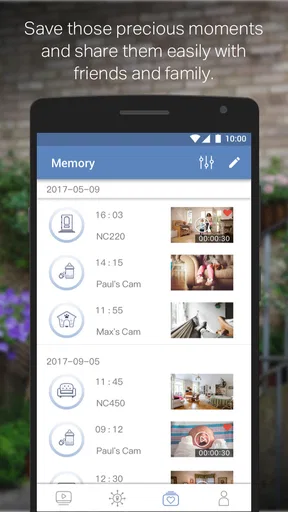
Before using saved footage for anything important, I would make a test recording and then confirm that I can find and play it. The original article describes saving footage to a device or cloud storage, but storage behavior can depend on the setup; it is wise to understand the actual options presented for your camera rather than assuming every model offers the same workflow. A short test helps answer practical questions about access without relying on memory or guesswork later.
Limits to keep in mind
Remote video is only as smooth as the connection between the camera and the phone. A weak network can mean buffering or delay, which is particularly inconvenient if you are trying to respond to something quickly. I would not treat a delayed feed as a real-time guarantee, and I would avoid depending on an app view as the sole way to handle urgent safety concerns. It is useful for checking, but it is not the same as being physically present.
Notifications also need sensible expectations. Motion detection can point you toward activity, but an alert does not explain what caused it, and ordinary movement can be mistaken for something that needs attention. If a camera is watching a space with constant foot traffic, repeated notifications may become noise. For a quiet room or a specific entrance, alerts may be more useful, provided the view and sensitivity are tuned to that setting.
Privacy is another reason to be deliberate rather than casual. The original review describes encryption and updates as part of the app’s security approach, but I would still treat access to indoor cameras with care: place them thoughtfully, limit who can view them, and keep account credentials private. No app setting can make an unsuitable camera placement feel comfortable to everyone in a household. A clear agreement about where cameras are used is as important as the technical setup.
The software is not the right choice for someone who wants one app to coordinate a mixed-brand smart home, or for a user who needs advanced monitoring workflows beyond basic camera viewing. It may also be a poor fit if the available camera model is not compatible, if dependable remote access is essential but the network is unstable, or if alerts are likely to create more distraction than reassurance. In those cases, a different camera ecosystem or a broader home-control platform may serve better.
How the app fits its audience
As a free app in the Libraries & Demo category, tpCamera has a specific purpose rather than the feel of a general-purpose utility. It is rated for Everyone, and its average rating is 4.2 from around 21,000 ratings, with over a million installs. Those figures suggest it has reached a substantial audience, but they do not tell me whether it matches a particular camera or household. I would put compatibility and the day-to-day network experience ahead of popularity when deciding whether to use it.
The app first appeared on November 25, 2014, and version 3.2.19 is the current version. It requires Android 7.0 or later, so an older Android device may not be suitable. Its free price makes it easy to try if you already have the right camera, but the app’s usefulness still rests on the hardware and setup around it. I would check that the phone can install it and that the camera is supported before planning to depend on it.
What I like most is the simple premise: open the phone, check a camera, and get back to what I was doing. That can be enough for a front entrance, a small office, or a quick look into a room at home. The best results come when I keep the camera’s purpose narrow, test remote access in advance, and set alerts so they help rather than interrupt.
Getting Started: The Setup
First things first, setting up the TP-LINK tpCamera is a breeze. All you need to do is download the app from the Play Store or App Store, create an account, and follow the straightforward steps to add your cameras. I was pleasantly surprised at how intuitive the process was. Even if you’re not the most tech-savvy person, you won’t find yourself scratching your head too much.
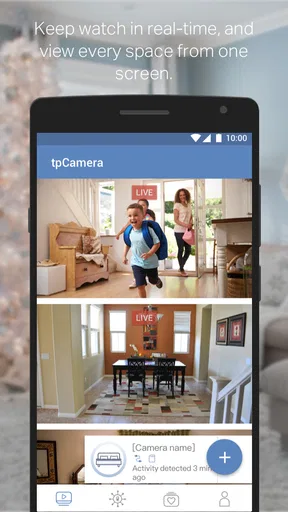
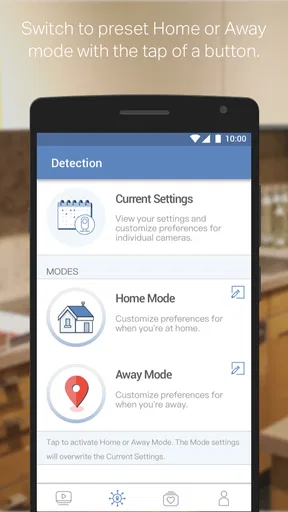
Once you’re all set up, you can start exploring the app’s features. It’s designed to let you view live feeds from your connected cameras, record footage, and even get alerts when motion is detected. It’s quite a comprehensive package for those of us who want to keep an eye on our homes or offices.
Exploring the Features
The app’s interface is clean and user-friendly. The main dashboard gives you quick access to all your cameras. You can easily switch between different views, which is pretty handy if you’ve got multiple cameras set up around your property. The live feed quality is excellent, with clear images and smooth streaming, provided you have a decent internet connection.
One feature I find particularly useful is the motion detection alerts. You can customize these settings to your preference, deciding how sensitive you want the detection to be. This feature is great for those moments when you’re away and want to be alerted to any unusual activity. Plus, the app allows you to save recordings directly to your device or onto cloud storage, which adds an extra layer of convenience.
Performance and Reliability
In terms of performance, the tpCamera app holds up well. It’s stable and doesn’t crash unexpectedly, which is always a plus. I did notice that the app performs best on a strong Wi-Fi connection, so if you’re on a weaker network, you might experience some lag in video streaming. But, honestly, that’s par for the course with most video apps.
Another thing worth mentioning is the app’s compatibility with a range of TP-LINK cameras. Whether you’ve got a newer model or an older one, chances are the app will support it. This flexibility is a significant advantage, especially if you’re looking to expand your camera setup in the future.
Security and Privacy
Security is a big concern for any app dealing with video surveillance, and TP-LINK seems to take this seriously. The app uses encryption to ensure your video feeds and data remain private. It’s reassuring to know that your footage isn’t easily accessible to just anyone. Plus, regular updates ensure that any security vulnerabilities are addressed promptly. This commitment to security is something I greatly appreciate.
Final Thoughts
Overall, my experience with the app has been positive. It’s user-friendly, reliable, and packed with features that genuinely enhance your home or office security. Whether you’re looking to monitor your front porch, keep an eye on the kids, or simply have some peace of mind while you’re away, this app delivers.
If you’re in the market for a robust and efficient camera app, I’d say give it a shot. It’s a solid choice that offers a lot of value without overwhelming you with unnecessary complications. So go ahead, download it, and see for yourself just how much it can do for you.
Pros
- Easy setup and installation process.
- High-quality video streaming.
- User-friendly interface.
- Remote access from anywhere.
- Compatible with multiple devices.
Cons
- Limited free cloud storage.
- Requires stable internet connection.
- Occasional app crashes reported.
- Limited advanced features.
- In-app ads can be intrusive.
FAQs for TP-LINK tpCamera
What is TP-LINK tpCamera and how does it work?
TP-LINK tpCamera is a mobile application designed to work with TP-LINK cloud cameras, enabling users to monitor their home or office remotely. The app provides real-time video streaming, allowing users to view footage directly from their smartphones. It requires an internet connection and compatible TP-LINK cameras to function effectively.
Is it difficult to set up TP-LINK tpCamera?
Setting up TP-LINK tpCamera is straightforward, especially for those familiar with basic app installations. Users need to download the app, create an account, and connect it to their TP-LINK cloud camera. The app guides users through each step, ensuring that even beginners can complete the setup without much hassle.
What features does TP-LINK tpCamera offer for security monitoring?
TP-LINK tpCamera offers several features for enhanced security monitoring. Users can access live video feeds, receive motion detection alerts, and review recorded footage. The app also supports two-way audio, allowing communication through the connected camera. These features make it a comprehensive tool for real-time home or office surveillance.
Are there any subscription fees associated with using TP-LINK tpCamera?
Using the basic functionalities of TP-LINK tpCamera is typically free of charge. However, certain advanced features or extended cloud storage options might require a subscription. Users should check within the app for any in-app purchases or subscription services that might enhance their experience.
What are the compatibility requirements for TP-LINK tpCamera?
TP-LINK tpCamera is compatible with iOS and Android devices, requiring a version that supports the app's latest updates. Additionally, it needs a TP-LINK cloud camera to function. Users should ensure their device meets the app's technical requirements and that the camera firmware is up-to-date for optimal performance.


